On this page
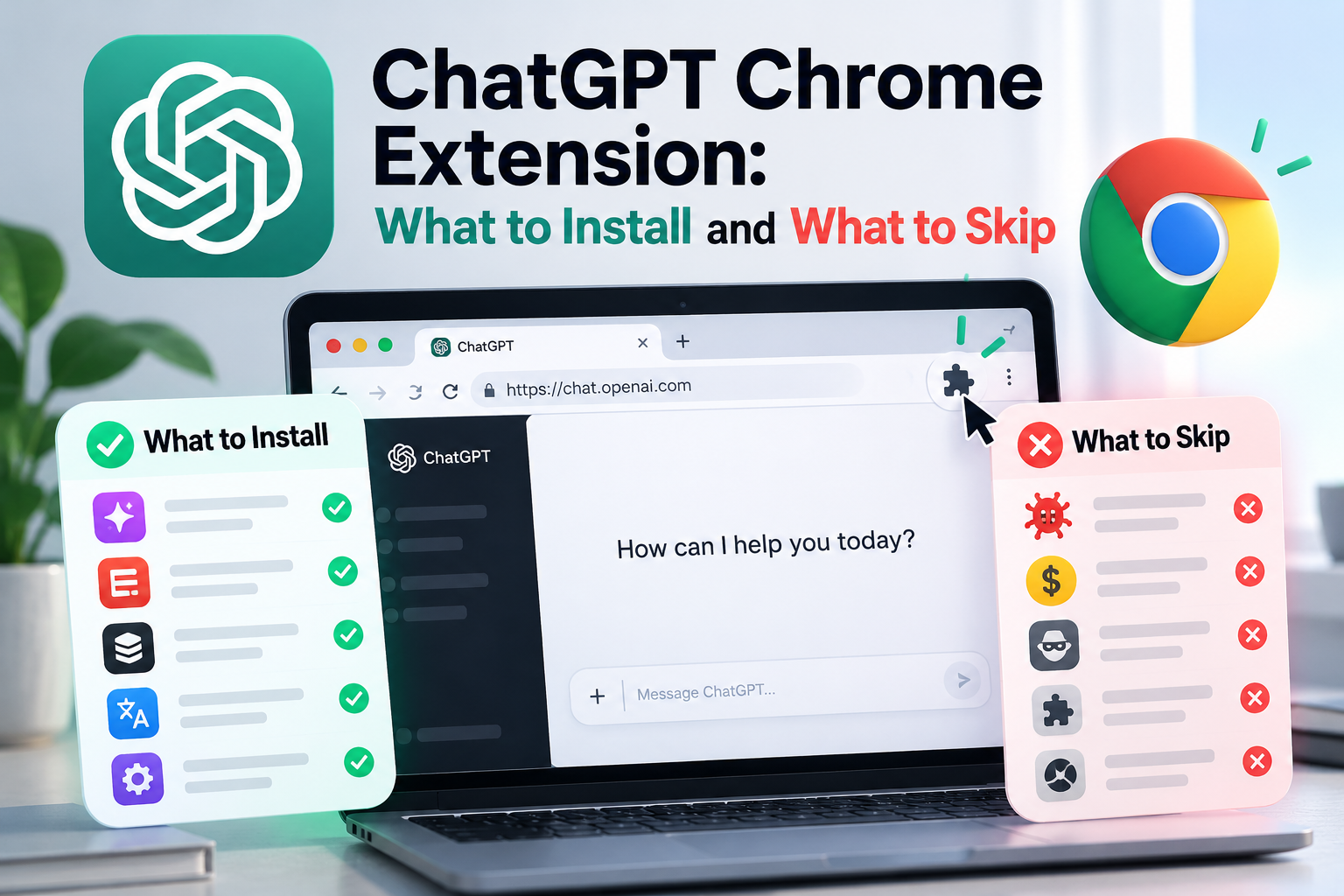
The best ChatGPT Chrome extension fixes a specific annoyance in your daily workflow: retyping the same prompts, weak first drafts, lost chats, or switching between models. Pick one job, install one extension for it, and ignore the rest.
Most extension lists are padded with 30 near-identical tools. This one is shorter. It covers the four jobs that are actually worth an extension, the risks to check before you install anything, and prompts you can paste in today.
The four jobs worth installing an extension for
Extensions fall into a few groups. Only some of them save real time.
Saving and reusing prompts. If you type "Act as a senior editor and tighten this" more than twice a week, it belongs in a saved library, not your memory.
Improving a prompt before you send it. Most weak answers come from weak prompts. An extension that rewrites your draft inline catches this at the cheapest moment.
Organising and searching old chats. Useful if you treat ChatGPT as a notebook. Less useful if you rarely look back.
Working across models. If you use ChatGPT, Claude and Gemini, you want your prompts to follow you rather than live in one tab.
Everything else (themes, voice buttons, page summarisers) is nice to have. Skip them unless one removes a step you do every day.
What to check before you install
A ChatGPT extension can read the page you're on, which means it can read your conversation. Treat the permission prompt seriously.
Permissions. Does it ask for access to all sites, or only to chatgpt.com? Narrower is better.
What it sends elsewhere. Some tools route your prompts through their own servers. Read the privacy policy for that, especially if you paste client or company data.
Who made it. Look for a named company, a real support page and recent updates. Dozens of lookalike extensions use the ChatGPT name without being affiliated with OpenAI.
Whether it needs your API key. Pasting a key into an unknown extension is a bad trade. Skip those.
Work policy. If you use ChatGPT for your job, check whether your IT team restricts extensions. Many do.
Features, limits, and pricing change often, so confirm current details on each extension's own page rather than trusting a roundup, including this one.
Job 1: Stop retyping prompts
This is the highest-value job. A saved prompt with placeholders turns a five-minute task into a thirty-second one, and the quality stays consistent.
Here is a template worth saving first. It's a meeting summary prompt:
You are an executive assistant who writes concise meeting notes.

Summarise the transcript below for [audience, e.g. the sales leadership team].

Format:
1. Decisions made (bullets, one line each)
2. Action items (owner, task, deadline if mentioned)
3. Open questions (bullets)

Rules:
- Do not add information that isn't in the transcript.
- If an owner or deadline isn't stated, write "Not specified".
- Keep the whole summary under [word limit, e.g. 200] words.

Transcript:
[paste transcript]
The rule about missing owners matters. Without it, ChatGPT tends to guess who was responsible, and the guess reads confidently.
With the PromptPal Chrome extension, you can save a prompt like this to your prompt library and pull it up from inside ChatGPT, Claude, or Gemini. Browse the public prompt library if you'd rather start from a template by role or task than write your own.
Job 2: Improve a prompt before you hit enter
Here's a worked example. The task is a cold email, and the first prompt is what most people type.
Before:
Write a cold email to a marketing director about our analytics tool.
The output is predictable: a flattering opener, three feature bullets, and "I'd love to hop on a quick call." It could be sent by any vendor to anyone.
After refining:
Write a cold email from [your name], [your role] at [company], to [prospect name], [prospect title] at [prospect company].

Context:
- Our product: [one-sentence description]
- The problem we solve for them: [specific problem, e.g. campaign reports take two days to assemble]
- One relevant proof point: [real result or customer, only if you have one]

Constraints:
- Under 120 words.
- Open with an observation about their company, not a compliliment.
- One clear ask: a 15-minute call.
- Plain tone, no exclamation marks, no phrases like "I hope this finds you well".

Give me two subject line options after the email.
What changed in the answer: the email got shorter, named a concrete problem, and stopped sounding like a template. The subject lines also came back as options instead of one guess. Nothing clever happened. The prompt just supplied the context the model would otherwise have invented.
Doing this by hand every time is tedious, which is why inline refinement is useful. PromptPal's Refine agent improves a draft prompt for you, so you review the result rather than writing the structure from scratch. For the manual method, our guide on writing better ChatGPT prompts covers it in detail.
Job 3: Make ChatGPT write less like ChatGPT
People search for a prompt to make ChatGPT write like a human, and an extension won't fix that. The prompt does. Generic output comes from generic instructions.
Save this as a reusable style prompt:
Rewrite the text below so it sounds like a person wrote it.

Rules:
- Vary sentence length. Include some very short sentences.
- Use concrete nouns and specific examples instead of abstract claims.
- Cut filler openers such as "In today's world" and closing recaps.
- Use contractions.
- Do not use these words: [list of words you're tired of, e.g. leverage, robust, seamless].
- Keep the meaning and every factual claim unchanged.

Voice reference (match this tone):
[paste 150-300 words of your own writing]

Text to rewrite:
[paste text]
The voice reference does most of the work. A sample of your real writing beats any adjective like "conversational" or "witty". If you use ChatGPT for writing regularly, keep one sample per voice (your blog, your emails, your client reports) and swap them in. Writers can see how this fits together on the PromptPal for writers page.
Job 4: Use more than one model
ChatGPT is not always the best tool for the task. Claude often gets picked for long-form editing and careful reading of long documents, and Gemini for work tied to Google products, but this depends on the model version and your task, and it shifts with each release. Test on your own work rather than trusting a general verdict.
If you're weighing a ChatGPT alternative, the practical test is simple:
Pick one real task, such as editing a 600-word draft.
Run the identical prompt in each model.
Compare the outputs against a checklist you wrote beforehand: tone, accuracy, following your format rules.
The key word is identical. If your prompt lives in a ChatGPT-only tool, you'll end up rewriting it for each model and the comparison gets muddy. Keeping prompts in a model-neutral place avoids that. We cover the differences in our post on consistent results across Claude, ChatGPT, and Gemini.
A simple setup that works
You don't need five extensions. This is the workflow most people end up with:
Install one extension for prompts, and nothing else to start.
Save the five prompts you reuse most. Name them by task, not by date: "Meeting summary", "Cold email", "Rewrite in my voice".
Replace specifics with
[placeholders]so each prompt works for the next job without editing.When a prompt gets better, save the improved version instead of overwriting it. Being able to go back matters the first time an edit makes things worse. That's what prompt version control is for.
Once a week, delete the prompts you didn't use.
If a team shares these prompts, the same logic applies at a larger scale, and a shared workspace stops everyone from keeping private copies. See PromptPal for teams.
Extensions to skip
Some types are rarely worth it:
Anything that asks for your OpenAI API key without a clear reason and a known publisher.
"ChatGPT on every website" sidebars if you already have the ChatGPT tab open. You gain a shortcut and add another place your page content might go.
Bulk export tools you'll use once. Use ChatGPT's own data export instead.
Extensions that promise to make answers "10x better" with no visible prompt. If you can't see what it adds to your message, you can't judge or fix it.
Next step
Install the PromptPal Chrome extension, save the meeting summary prompt above, and use it on your next call. One saved prompt used twice already pays for the setup.
Stay Updated
Get the latest blog posts and AI prompt engineering tips delivered to your inbox.